Role mapping
Role mapping controls how Agility roles are assigned to users signing in via SSO. It runs on every SSO sign-in, so a user's roles always reflect their current state in your IdP (when SCIM is disabled).
Configure role mapping under Settings → Account → Identity → SSO in the Role mapping section.
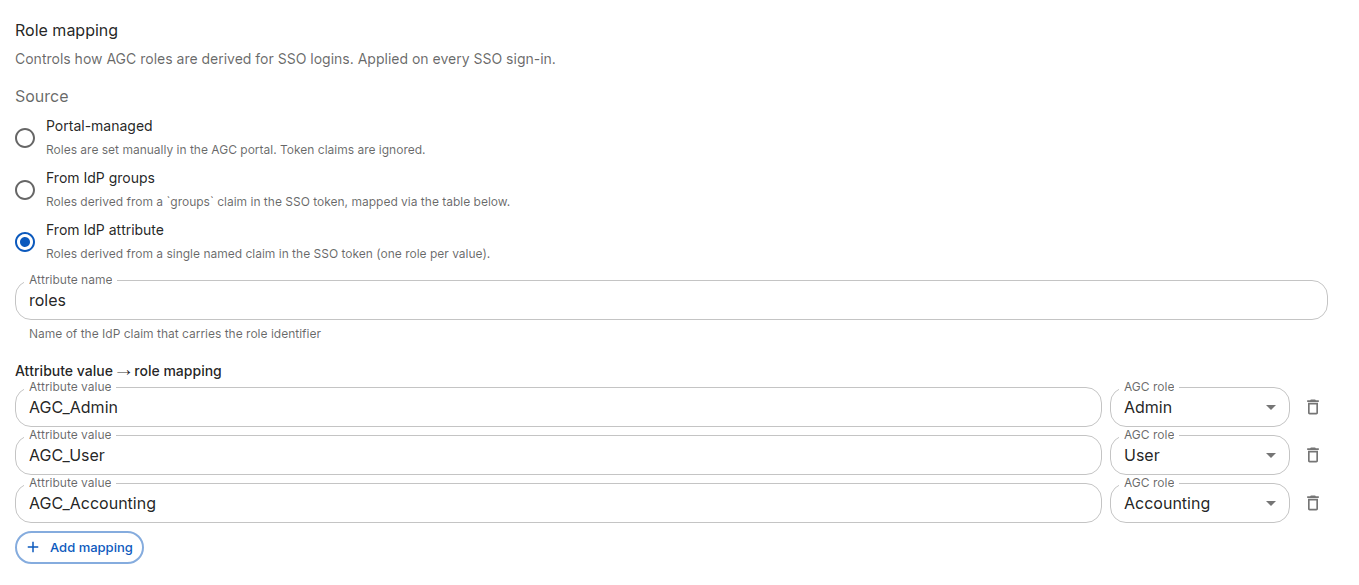
The three sources
Pick the source that fits how your IdP is structured.
Portal-managed
Roles are set manually in the Agility portal. Token claims are ignored.
Use this when you want SSO only for authentication, and Agility administrators continue to assign roles by hand in the portal's user management page.
- Pros: Simplest setup. No IdP changes needed.
- Cons: No automation — you'll need to add/remove roles manually as people change teams.
From IdP groups
Roles derived from a
groupsclaim in the SSO token, mapped via the table below.
Use this when your IdP sends group memberships and you want group membership to drive Agility roles.
You configure a mapping table:
| IdP group | Agility role |
|---|---|
agility-admins | Admin |
agility-users | User |
agility-credit-users | User with Credit |
agility-accounting | Accounting |
agility-api | API |
A user can be assigned multiple roles if they're a member of multiple mapped groups. If they're in none of the mapped groups, they receive no roles (which typically means they cannot use the portal).
Group names must match exactly — they are not case-insensitive or pattern-matched. Make sure the value you enter matches what your IdP actually sends. If you're unsure, enable Log successful events (debug) on the Activity tab and inspect the claim values in the event log after a test sign-in.
From IdP attribute
Roles derived from a single named claim in the SSO token (one role per value).
Use this when your IdP doesn't expose group memberships, or when you'd rather drive role assignment from a custom user attribute (e.g. department, jobTitle, a custom agcRole claim).
You configure:
- Attribute name — The name of the claim Agility should read (e.g.
department). - A mapping table from attribute values to Agility roles.
| Attribute value | Agility role |
|---|---|
Finance | Accounting |
Compliance | Admin |
If the claim is multi-valued, each value is matched independently and matching roles are combined.
If you're on Entra, this is the source you want, with Attribute name set to roles. Define App Roles in your Entra app registration (e.g. Admin, User, UserWithCredit, Accounting, API), assign users to them, and Entra emits the role values in a roles claim across SAML, OIDC, and SCIM with the same setup. This avoids the GUID-vs-name problem of group claims and is immune to group renames. See Set up Entra ID for the click-through.
How matching works
- Matching is exact, case-sensitive.
- Multiple matches assign multiple roles.
- No match assigns no roles.
- There is no default fallback role — if you want all SSO users to get at least one role, include a catch-all group everyone belongs to.
When role mapping does not apply
If your tenant has SCIM provisioning enabled, role mapping behaves differently:
- For new users, SSO sign-in is rejected — users must be created via SCIM first.
- For existing users, roles come from the user's record (managed by SCIM). SSO role mapping is not re-applied at sign-in.
In short: when SCIM is enabled, SCIM owns user lifecycle and roles. SSO is used only to authenticate. See SCIM provisioning for details.
Recommended setup
The right source depends on your IdP:
Entra ID — use App Roles (From IdP attribute, name roles):
- Define App Roles in your Entra app registration matching the Agility roles you want to grant (e.g.
Admin,User,UserWithCredit,Accounting,API) and assign users to them. - In Agility, set Source to From IdP attribute and Attribute name to
roles. - Map each app role value to an Agility role.
Works identically across SAML, OIDC, and SCIM. See Set up Entra ID.
Okta — use IdP groups (From IdP groups):
- Create groups in Okta for each Agility role you want to grant — for example
agility-admins,agility-users,agility-credit-users,agility-accounting,agility-api— and assign users to them. - In Agility, set Source to From IdP groups.
- Map each group name to the corresponding Agility role.
See Set up Okta.
Fallback — Portal-managed:
Use Portal-managed only if your IdP team can't (or won't) send group or role claims. Roles will then be assigned by Agility administrators manually.
Verifying your mapping
- Save the configuration.
- On the Activity tab, toggle Log successful events (debug) on.
- Have a test user sign in via SSO.
- Open the resulting
sso_login_successevent (orsso_user_attributes_updated/sso_user_createdif anything changed) in the activity log and expand the detail row to see the exact claim values Agility received and which roles were assigned. - Adjust the mapping table if needed.
- Turn the debug toggle off once you've confirmed everything works — successful sign-ins generate a lot of log volume.
Next steps
- SCIM provisioning — Enable automated user provisioning from your IdP
- Troubleshooting — If users sign in with no roles or the wrong roles